


QBCFMonitorService Not Running: Causes and Fixes
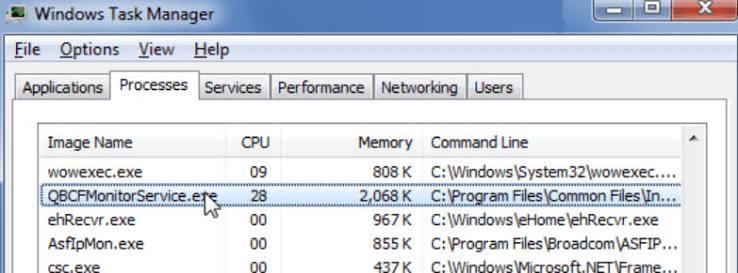
QBCFMonitorService is short for QuickBooks Company File Monitor Service, and it's a background process that runs on the computer which hosts your QuickBooks company file. It's responsible for monitoring the company file in real-time so that each workstation accessing it via the network sees the same information. If it fails to run, the multi-user access to the company file is compromised. Other workstations will be unable to access the company file and an appropriate error such as H202, H303 or H505 instead of the normal login screen will appear.
This service is installed automatically when QuickBooks Database Server Manager is installed and therefore is not available on systems not set up as a host computer for multi-user access. Single user installations of QuickBooks will not have this service installed and therefore this issue will only ever be observed on workstations which utilise a shared QuickBooks company file.
Why QBCFMonitorService may stop running
There are a number of common causes for this issue:
-
The service was disabled or set to manual start in Windows services and therefore did not start upon system boot.
-
Windows firewall or virus scanner software is preventing QBCFMonitorService from communicating across the network, possibly because it is blocking the relevant ports.
-
The permissions on the folder which contains the company file have changed, preventing QBCFMonitorService from accessing it.
-
A recent change to the host computer's operating system caused the service to misbehave, possibly as a result of a Windows update.
-
QuickBooks Database Server Manager is out of date or corrupt.
-
The host computer's network address changed since the last reboot, possibly because it uses DHCP, and QBCFMonitorService is no longer able to communicate with the company file.
Any one of these scenarios could cause this issue to arise and render the company file inaccessible to other workstations without notice.
Read More:- QBCFMonitorService Not Working
Steps to fix the issue
The following steps should be taken in order until the issue is resolved in order of descending likelihood:
-
Check the status of the service in Windows Services (run services.msc, expand the QuickBooksDBXX and QBCFMonitorService entries from the list and ensure that they show as started). If either service is stopped, try right clicking and starting them then change the Startup type to Automatic so that they are not disabled.
-
Restart the service. Sometimes simply restarting is enough, but avoid restarting the computer if the service keeps dying within a few seconds as this will make further troubleshooting difficult.
-
Run QuickBooks File Doctor. This tool, which is found inside the QuickBooks Tool Hub, will attempt to diagnose and fix any permission or network communication related issues which are preventing QBCFMonitorService from operating normally.
-
Open the required ports in the firewall. This process differs depending on whether you're using Windows Firewall or a third-party product, but in general you need to open ports in the range 8019, 56726-56728 (this range sometimes varies depending on the year of your QuickBooks installation). The QB Tool Hub contains a firewall configuration utility which can be used to set these up, which is considerably easier than configuring them manually in Windows Defender.
-
Check that the folder permissions are not preventing QBCFMonitorService from accessing the company file. The Windows user account under which the Database Server Manager service is running must have full read/write access to the folder. This is likely to be an issue if the folder was moved at any point since the company file was created or moved onto the host computer.
-
Re-register the .ND file which maps network drives to the host computer. Right-click the .ND file in the company file's folder and rename it, then run QuickBooks Database Server Manager and attempt to browse for the company file again to re-register it.
-
Update QuickBooks Database Server Manager. This utility has a habit of causing issues if it is out of date, particularly if the host computer's operating system was recently updated.
If none of these steps work, it is likely that a reinstall of Database Server Manager (keeping the company file untouched) will be required to completely resolve the issue. A more detailed guide to resolving networking related problems in QuickBooks can be found in this article on fixing QuickBooks multi user mode errors. If you need help troubleshooting QuickBooks network issues, AccountingAssistPro can provide assistance at +1-888-892-5727.
FAQs
What does QBCFMonitorService actually do?
It monitors the company file for changes and ensures that multiple users are able to access it simultaneously. If it's not running correctly, the multi-user access to the company file can be compromised.
Why does this only apply to the host computer?
Because the QBCFMonitorService is only ever run on the computer which has been configured to host a QuickBooks company file using Database Server Manager. The client workstations running the file over the network do not have this service.
Is it possible to fix this without having to contact QuickBooks support?
In almost all cases, this can be fixed by restarting the service or the computer and checking the Windows firewall settings. If it persists, running through the QuickBooks File Doctor wizard should diagnose and fix any network-related issues. Any issues which persist past that point are likely to require contacting QuickBooks support directly.
Will restarting the service delete any data?
No, restarting or reinstalling the service should not delete any data so long as the company file itself is not deleted or moved to a different location during the process.
How can I confirm that this is a firewall issue?
If the QBCFMonitorService shows as running in Windows Services but other workstations are still unable to access the company file, it is likely that your firewall is blocking its communication features.

 English
 Arabic
 French
 Spanish
 Deutsch
 Turkish
 Dutch
 Italiano
 Russian
 Romaian
 Portuguese (Brazil)
 Greek