


Eufy E220 Setup: A Step-by-Step Guide
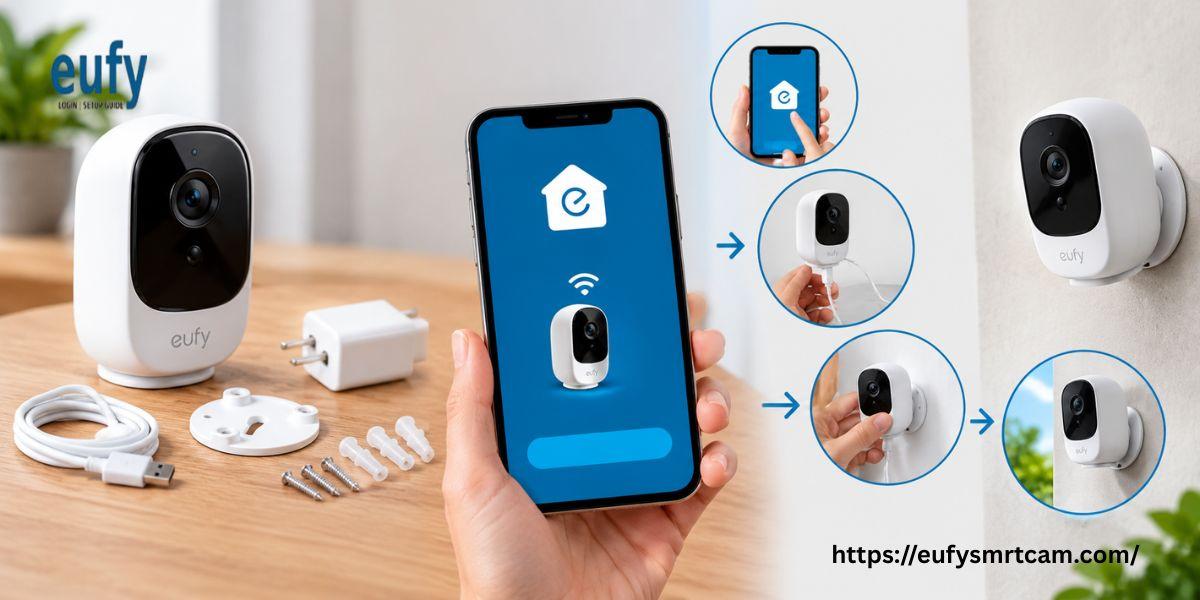
The Eufy Indoor Cam E220 is a security camera made to keep an eye on your home. It gives you 2K video and lets you move the camera view with pan-and-tilt features so you can watch different parts of a room.
If you just bought the Eufy E220 and want to get it set up, this step-by-step guide will help you use the Eufy Security app to finish the Eufy E220 setup.
What You Need Before Starting Eufy E220 Setup?
Before you begin installing the camera, make sure you have these items:
-
Eufy Indoor Cam E220 camera
-
A 2.4GHz Wi-Fi connection
-
A smartphone with Android or iOS
-
The Eufy Security app
-
The camera power adapter and USB cable
-
An active Eufy account
How to Set Up the Eufy E220 Step by Step?
Follow these simple steps to connect your camera and start watching your home in real time.
Step 1: Download the Eufy Security App
-
Start by getting the app on your phone.
-
Go to the Google Play Store or the Apple App Store.
-
Search for "Eufy Security" in the store.
-
Click Download. Wait for the installation to finish.
-
Open the app once it’s installed.
Step 2: Sign In to Your Eufy Account
Now you need to log in to your account.
-
Open the Eufy Security app.
-
Tap on Eufy Login.
-
Enter your email and password.
-
Tap Sign In to go into your account.
-
If you don’t have an account, tap Sign Up to make one.
Step 3: Power Up the Eufy E220 Camera
Take the Eufy Indoor Cam E220. Plug the USB cable into the power adapter.
-
Connect the adapter to a power outlet.
-
Turn on the power.
-
Wait for the camera to start up.
-
Look at the light.
-
A breathing blue light means the camera is ready for setup.
Step 4: Add the Eufy E220 to Your App
-
Open the Eufy Security app.
-
Go to the Devices section.
-
Tap Add Device.
-
Choose Indoor Cam Pan and Tilt.
-
Scan the QR code on the back of the camera.
-
Follow the steps on your phone screen.
Step 5: Connect Eufy Camera to WiFi
-
Connect the camera to your home network.
-
Pick your Wi-Fi network from the list.
-
Make sure you select the 2.4GHz band.
-
Type in your Wi-Fi password.
-
Follow the steps shown on your phone.
-
Wait until the camera connects successfully.
-
Keep your phone and camera close to your router for a setup.
Step 6: Finish Camera Settings
-
Once the camera connects, you can finish the setup.
-
Give your camera a name you will remember.
-
Check the video stream.
-
Set motion detection to alert you when something moves.
-
Adjust how far the camera can pan and tilt.
-
Turn on notifications if you want to get alerts on your phone.
Now your Eufy E220 setup is complete.
Common Problems When Setting Up the Eufy E220 and How to Fix Them
Sometimes the setup doesn’t go smoothly. Here are the common problems and how to solve them.
1. Camera Won’t Connect to Wi-Fi
Double-check your Wi-Fi password. Make sure you are connecting to a 2.4GHz network. The Eufy E220 does not support 5GHz.
2. Eufy Login Won’t Work
Check the email and password you entered. Make sure there are no typos. If you forgot your password, use the reset option.
3. QR Code Won’t Scan
Clean the camera lens with a cloth. Make sure your phone screen is bright enough. Stand close to the camera. Scan again.
4. Camera Shows as Offline
Check your internet connection. Restart the camera and your router. Then try to reconnect.
Final Thoughts
Setting up the Eufy E220 is easy if you follow the steps. You need to download the Eufy Security app and log in with your account. Then connect the camera to your Wi-Fi. After everything works, you can view video and adjust settings from your phone.
If you still have trouble with setup or connection, you can ask for help from Eufy support or a professional technician.
Frequently Asked Questions (FAQs)
1. Which app do I need for the Eufy E220?
You need the Eufy Security app. It works on Android and iOS phones.
2. Does the Eufy E220 support 5GHz Wi-Fi?
No. The Eufy E220 only works with 2.4GHz Wi-Fi networks.
3. How do I log in to Eufy?
Open the Eufy Security app. Enter your email and password to sign in.
4. Why is my Eufy E220 not connecting?
It could be Wi-Fi details or a weak signal. Check your network. Try again.
5. How do I reset my Eufy E220 camera?
Press. Hold the SYNC button for about 10 seconds. This will reset the camera to factory settings.
Also Read:
https://eufysmrtcam.weebly.com/blog/how-to-access-eufy-camera-login
https://eufysmrtcam.wixsite.com/eufy-camera/post/how-to-optimize-your-eufy-camera-settings

 English
 Arabic
 French
 Spanish
 Portuguese
 Deutsch
 Turkish
 Italiano
 Russian
 Romaian
 Portuguese (Brazil)
 Greek